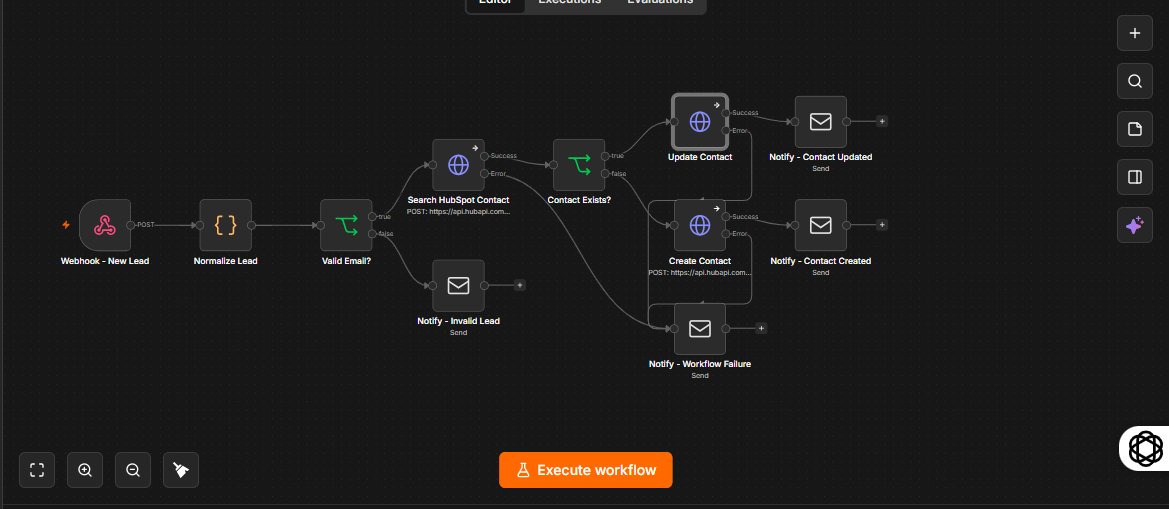
HubSpot lead sync workflow
Joseph Makinde
Published
This workflow takes a new lead from your buyer’s form and makes sure it ends up in HubSpot without creating duplicates. It starts at the webhook on the far left. When the form is submitted, the lead’s details arrive there and move straight into a small code step called Normalize Lead. That step tidies the data by trimming extra spaces, turning the email into lowercase, and keeping only the fields that actually have a value, so an update later never wipes out information already stored in HubSpot.
Next comes a check on the email address. If it doesn’t look like a real email, the lead takes the lower branch to the “Notify - Invalid Lead” email, which tells you the lead was rejected, and nothing is sent to HubSpot. If the email looks fine, the lead continues up to the “Search HubSpot Contact” step, which asks HubSpot whether someone with that email already exists. That search is what prevents duplicate contacts.
The “Contact Exists?” step then reads HubSpot’s answer. If the person is already there, the lead goes along the top path into “Update Contact”, which edits the existing record with the new details, and then to “Notify - Contact Updated”, which emails you a confirmation. If the person isn’t found, the lead goes along the lower path into “Create Contact”, which adds them as a new record, and then to “Notify - Contact Created”, which sends you its own confirmation.
The failure email at the bottom, “Notify - Workflow Failure”, is the safety net. The search, update and create steps each have an error output, and all three lines run down into that one email node. If HubSpot rejects a request, for example because the token is wrong or HubSpot is down, you get an alert with the lead’s data instead of the problem passing unnoticed.