Twine
Found a great freelance job but forgot to save it? Sent a proposal weeks ago and can’t remember whether you followed up?
When you’re juggling multiple clients, applications and job boards, keeping track of everything can quickly become another job in itself.
Introducing Twine’s job tracker, a simpler way to manage all your freelance job search from start to finish.
Saved a project on Twine, applied for a role elsewhere or landed a new client? You can keep all of it on one board, rather than spread across job boards, emails and spreadsheets.
Why freelancers need a job tracker
Freelancing rarely involves applying for one role. You might be applying to three clients, negotiating a rate with another and saving jobs for next week. Meanwhile, a proposal you sent last month could suddenly turn into a new project.
Most job search trackers are built for people chasing one full-time role. Project-based work looks different: several clients, at different stages, on different sites, all at once. Without one place to see it, things slip. A saved job closes before you get back to it. A proposal goes unanswered because nobody followed up (including you).
The Twine job tracker gives all of that a home, so you can track job applications from Twine and from everywhere else you look for work.
How does Twine’s job tracker work?
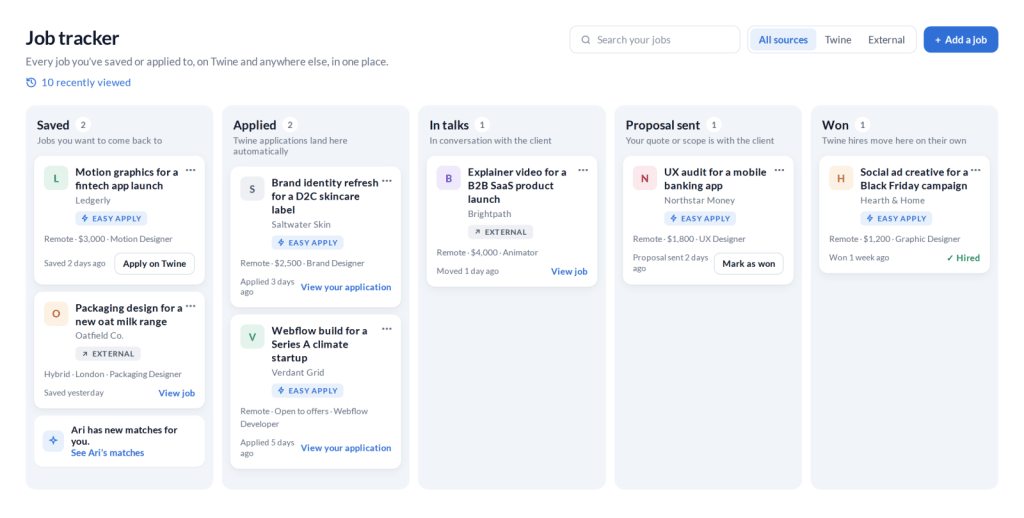
The board has five columns, one for each stage of winning a freelance job.
Column | What it holds | How jobs get there |
Saved | Jobs you want to come back to | Save a Twine job, or add one from another site |
Applied | Jobs you’ve applied to | Twine applications land here automatically |
In talks | Jobs where you’re talking to the client | You move them here |
Proposal sent | Jobs where your quote or scope is with the client | You move them here |
Won | Jobs you’ve landed | Twine hires move here on their own, or use Mark as won |
Each job appears as a card showing the job title, client, location, budget and role. You can also see when a job last changed stage, so it’s easy to spot the ones that haven’t moved.
Saved Twine jobs have an Apply on Twine button, which takes you straight from your shortlist to the application. Once you’ve applied, the card links back to your application.
Which jobs update automatically?
Anything that happens on Twine updates itself. When you apply for a job on Twine, it appears in your Applied column. If you’re hired through Twine, the job moves to Won.
For stages such as In talks and Proposal sent, you’re in control. Conversations and negotiations often happen over email or calls, so you update the status as things progress.
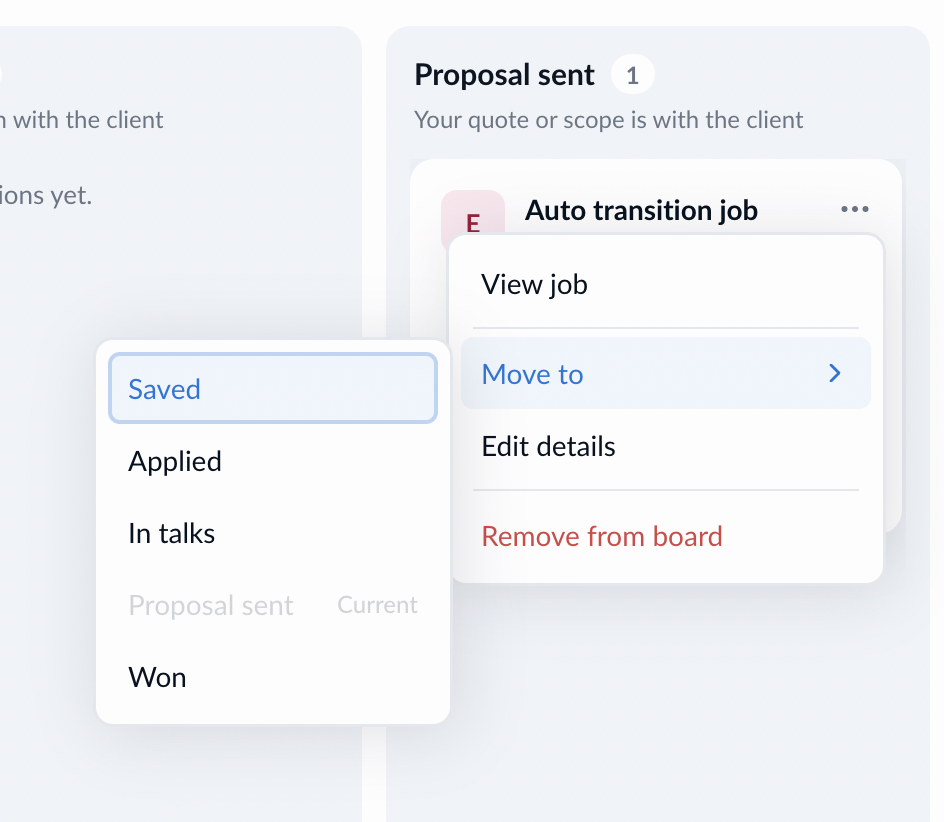
To move a job, open the menu on a job card, select Move to and choose the stage. From the same menu, you can also view the job, edit its details or remove it from your board.
Can you track jobs from other platforms?
Yes. Your freelance work doesn’t come from one platform, so your job tracker shouldn’t be limited to one either.
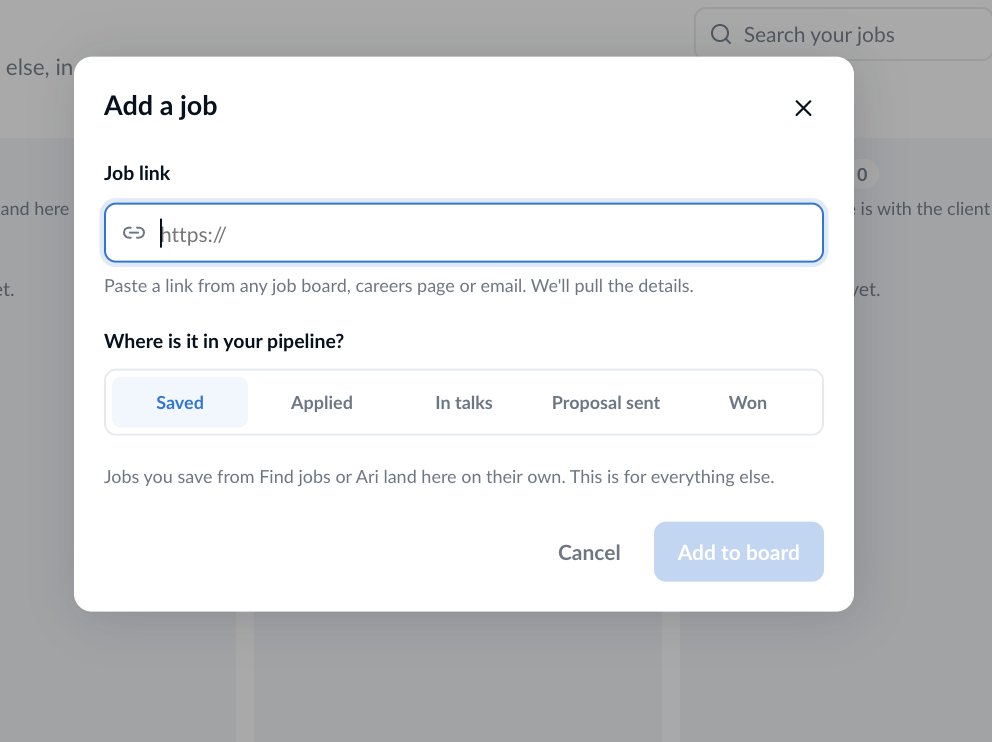
With Add a job, you can add jobs you’ve found on other job boards, on company careers pages or through referrals. They appear alongside your Twine applications and move through the same five stages. That means you can manage your whole freelance job search without keeping a separate tracker for every platform.
As your board grows, use the source filter to switch between All sources, Twine and External. Use the search bar to find a particular job without scrolling.
Revisit jobs you viewed but didn’t save
We’ve all done it. You open an interesting job, take a quick look and tell yourself you’ll come back to it later.
Then you forget where you found it.
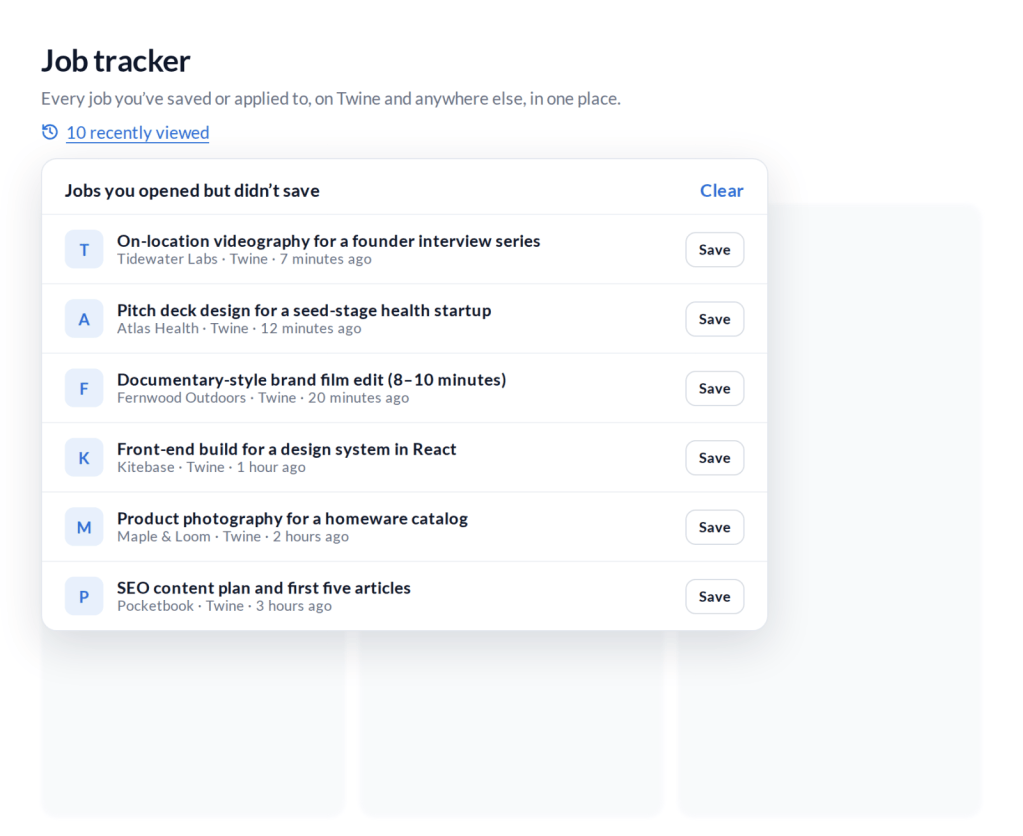
The job tracker’s recently viewed list helps with exactly that. It shows the last 10 jobs you’ve opened on Twine but haven’t saved. See something worth applying for? Hit Save to add it straight to your board. You can clear the list whenever you want.
Five ways to make the most of your job tracker
A job application tracker works best when it’s part of your regular job search routine. Here are a few simple habits that can help.
1. Keep your Saved column manageable
Save jobs you’re genuinely interested in and review them regularly. A shorter list is easier to act on.
2. Add external applications as you go
Applied for a project outside Twine? Add it to your board while the details are still fresh.
3. Update your conversations
When a client replies or asks to discuss a project, move the job to In talks. That way you can tell active conversations apart from applications you’re still waiting to hear back on.
4. Make time for follow-ups
Check your Proposal sent column regularly. If you haven’t heard back from a client, a timely follow-up can get the conversation moving again.
5. Keep your pipeline up to date
Remove jobs that are no longer relevant, so your board stays focused on the work you’re actively going after.
Find jobs with Ari. Track them with Twine.
Keeping your applications organized is one part of freelancing. Finding the right work is another.
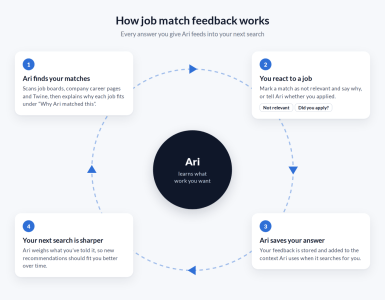
Ari, Twine’s job assistant, helps with that part. It scans thousands of project-based jobs in real time, across job boards, company career pages and Twine, and matches them to your portfolio or resume. You review the matches that fit your skills and experience, and you decide what to apply for.
When Ari has new matches for you, the Saved column of your job tracker says so and links straight to them. Setup takes about two minutes and needs nothing more than your portfolio or resume.
Find your next job with Ari, and keep track of every step with Twine’s job tracker. Explore your job tracker.
Have feedback or suggestions for Twine?
We’d love to hear from you! Share your feedback and help us improve your experience.


 Raksha